The Brief Creative Newsletter
February 21, 2026
059 - You Know What to Post About
Check out the Zap I built for pulling ideas for Linkedin posts from the meetings you're already having
The Deep Thoughts
This is what I'm thinking about.
"I don't know what to post about." I hear it constantly. Mostly in response to me not shutting up on Linkedin.
I know I’ve somehow convinced you to subscribe to this thing but I’m not that smart. I’m not coming up with wild ideas all the time (it does happen though). What I do is constantly pull from the work.
That’s the thing most people miss: the content is already there. It's happening on your calls every single day. Client problems. Prospect questions. That’s the real stuff that your audience actually wants to learn from.
That's not random idea generation. That's strategic, tactical, tangible content waiting to be captured.
But between back-to-back meetings and context switching it all disappears so I built a system for my team to capture all the ideas. It’s a Zap that pulls insights from our meeting transcripts, tags them by content pillar, and drops them into a shared channel so everyone has visibility.
Because I can post all day, but OhSnap! grows faster when the whole team is sharing. They're on these calls. They have opinions. They should be sharing them too.
And when we're all writing about similar topics? It reinforces the message in the market.
So…. let’s get into it!
 You know what to post about…
Actually before we get started, this is all done in Zapier and here’s the template. You’ll still have to fill it out but it’s a great starting point
1. New Meeting Transcript is Ready
So Fathom is our preferred AI notetaker but this trigger should work with any other AI notetaker like Otter or Fireflies or Granola. Use the new transcript as a trigger to kick off the Zap. Because our Fathom is a teams account, I use the Team Meetings configuration (it’s literally just a dropdown item) but that’s all there is to it.
We’ll be using this step for more than just the meeting transcript later on so make sure you think about things like meeting titles because this step does more than copy/paste your convo.
2. Convert to Readable Date
Most AI notetakers share dates in UTC format which is cool for consistency but not cool for reading so this step converts the date to a more readable format.
Select the “Formatter by Zapier” app and under “Action event” select “Date / Time”. In the Configure menu under “Transform” select “Format”, for the input use the Fathom Meeting Scheduled Start Time from step 1. Under “To Format” select your desired output, I chose “MMMM DD YYYY” because the time doesn’t matter that much to me but the date does. The only other fields that matter here are “To timezone” and “From timezone”. To is where you live/work, From is UTC.
3. Run Post Analysis Agent
This is the meat of this Zap. It’s a separate agent that I’ve set up to return JSON that we can loop through. If that’s not in English for you, don’t worry about it. It’s just a robot that reads the transcript and returns topics in chunks that we can work with.
3a. Setting up the Agent
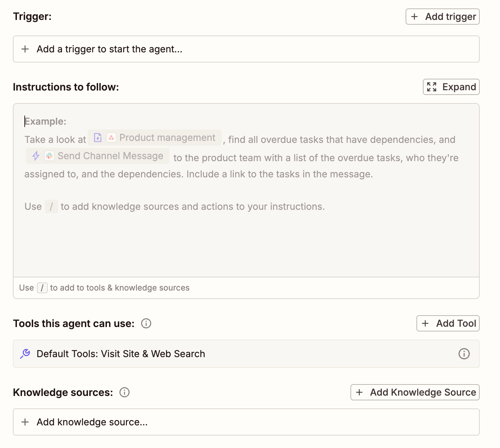
To set up an agent you need a paid Zapier account (← this link will get you 2 free weeks to test it out). You go to agents.zapier.com and create a new Agent. I prefer starting from scratch. This is what a blank Agent looks like:
 Build your own agents with Zapier
The Trigger
You can trigger Agents in lots of different ways. You can use apps (similar to Zaps), you can run them on demand (a chrome extension is a good way to do this), you can run them on a schedule, or you can have a Zap trigger them. That’s what we’re doing here.
Instructions to Follow
This is telling the Agent what you want it to do. In our case the instructions are:
I will analyze a meeting transcript using the OhSnap! Meeting to LinkedIn Content System knowledge source. I will identify moments that satisfy the criteria for strong LinkedIn posts and output the results as a JSON array of objects. Each object should have the following fields:
- summary - [a one sentence summary of the post]
- theme: [Content pillar from the system]
- quote: [Direct quote with timestamp]
- timestamp: [timestamp from quote converted into seconds]
- context: [Brief description of who/what/when]
- gutReaction: [Raw insight or why this resonates]Output ONLY the valid JSON array with no preamble, extra text, or markdown formatting. The array should be ready for direct parsing.
Nothing too fancy here but you can get very detailed in here. The more descriptive you are the more detailed the response usually but remember an Agent should have a single job so don’t get too wild here.
Things to pay attention to:
- “the OhSnap! Meeting to LinkedIn Content System knowledge source” - this is a doc I created and will get into in a sec under knowledge source
- JSON array of objects - this is basically dev talk for a collection (array) of separate key/value pairs (JSON). This is what we’re talking about:
[
  {
     "summary":"[a one sentence summary of the post]",
     "theme": "[Content pillar from the system]",
     "quote": "[Direct quote with timestamp]",
     "timestamp": "[timestamp from quote converted into seconds]",
     "context": "[Brief description of who/what/when]",
     "gutReaction: [Raw insight or why this resonates]"
   },
   {
     "summary":"[a one sentence summary of the post]",
     "theme": "[Content pillar from the system]",
     "quote": "[Direct quote with timestamp]",
     "timestamp": "[timestamp from quote converted into seconds]",
     "context": "[Brief description of who/what/when]",
     "gutReaction: [Raw insight or why this resonates]"
   }
]
You’re not building this so don’t worry about it but wanted to illustrate. When it’s time to create threads we loop through these so we can individually reference the different parts.
Tools this Agent can use
This is about accessing different tools. We don’t use that here.
Knowledge Sources
This is a big one. It’s a separate doc I’ve created as a reference file to identify what we look for in posts. It includes:
- Key Names and Slack Handles - this ensures people’s names are spelled right and that they’re tagged when a thread is made
- Content Pillars - a list and description of the things you post about. This is important so that your results are actually accurate.
- What to Listen For - this section is optional but at this point we have a general idea of trigger words/phrases that either we say or other people we talk to say so I’ve included them. I very clearly state that this isn’t all of it and to pay attention.
- What to Capture - this is the specific format I want everything returned in. It matches what’s in the Agent above. I also add notes about what I value and don’t
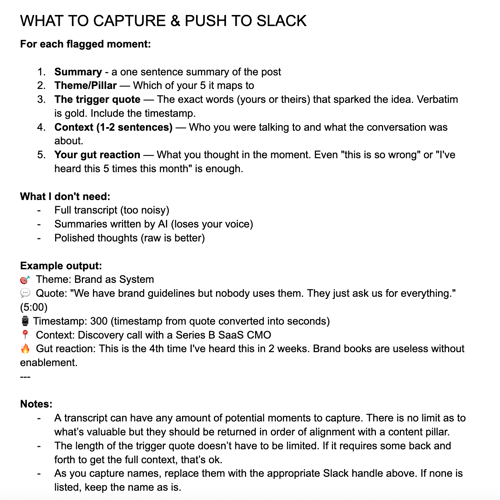 Some instructions I’ve created
 - What Not to Capture - because we’re sharing this with the whole team it’s important to not share anything confidential or performance related. We’re very transparent but we also value privacy so make sure you think these through
- Sample transcript - You may not have a transcript ready to go in your notetaker so add one here to test the Agent against
You did it. You built an agent. Test it to make sure it does what you intended. It’s also just fun to watch.
4. Meeting Info Post
I played around with a ton of different formats, some messy, some overwhelming and I landed here. I want a single message per meeting with the topics as threaded messages nested but before you can thread, you need a message so we’re gonna link up Slack and select “Send Channel Message” as the action.
When we configure, we’re first gonna pick a channel. We created one called #content-ideas. Next, make sure the Zapier app is added to the channel or it can’t post. Now we get to the good stuff, the message. Here’s what ours looks like:
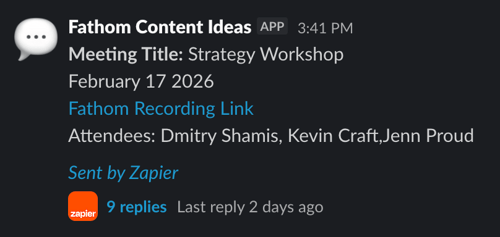 Ignore the replies for now…
Here’s what the Message Text field looks like:
*Meeting Title:*

 <|Fathom Recording Link>
 Attendees: ,
Don’t include the they’re to show you where things go and the field names map to either step 1 or step 2. Do include the *, |, and <> as they serve a purpose: the asterisk makes things bold, the carets and pipe are for creating a link.
Send the message as a bot. Give it a cool name, ours is Fathom Content Ideas (yup, we’re Creatives!), throw it an icon using Slack emoji notation (:your-fav-emoji:), and stick the defaults for the rest.
5. Create Loop from Line Items
It’s time to use that JSON. Transparently, loops are considered advanced by Zapier but I believe in you. You’re going to “Create a Loop from List Items” then start configuring.
We created five fields in our JSON response. I’m going to explain one but it’s the same for all 5. What we’re doing here is mapping the values to keys you can use later on. The first is “context,” use that for the short box on the left. Then in the right, larger box select from the Agent step above. What’s the deal with the double response? Well it’s really Agent Response, Response Text, Context, idk, but once you map all five, you’re ready to go. Trim that whitespace and start at 1. If you talk a lot this could be a good place to set a limit of how many topics you want it to return.
6. Add relevant info to threads
Now onto the threads. The initial setup here is the same as 4. Send message to channel, same channel name, add Zapier. Here’s where it changes, the message and the thread. For the message we’re using the loop items:
*.  <?timestamp=|>*
:fire:
:dart: Pillar:
:speech_balloon: Quote:
:round_pushpin: Gut Reaction:
There’s a lot of noise in there but here’s what it does.
*. <?timestamp=|>* is a bolded, numbered link and the output looks like: “1. The majority of work in most B2B organizations is busy work that doesn't require creative talent.” That ?timestamp= sends the link to the exact timestamp so you can get the full context. And the emojis are to visually distinguish each item but you can change them, remove them, add more. Do you.
The other big difference from 4 is the Thread field. From step 4, pull the Ts value. That’s the original message. Since we want to nest the topics in the thread we’ll need this value to tell the Zap where to send it. Make sure you also mark the “Send to Channel” as no so you don’t blow up your channel with double messages.
Here’s what it’ll look like:
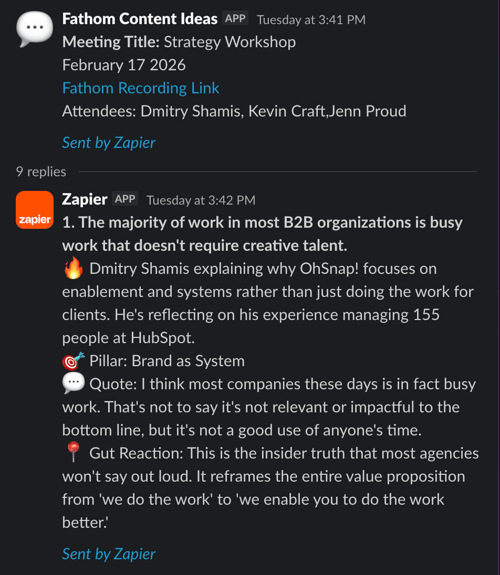 This is what your thread should look like with each numbered post
What’s next?
Now every time you wrap a meeting within a few minutes you’ll have a message with all of your key takeaways and topics to write posts about so get to work. Something I’ve been messing with a ton lately is Stanley and it’s been really helpful. I’ll never just take the content directly but it’s nice to have a sparring partner trained on what performs on Linkedin to challenge me and poke holes. It’s made my writing stronger.
Ok, that’s enough! This is the longest one of these I’ve written in months and this is the first time in a while I’ve used code snippets. I promise you this is really easy. If you have any questions, just let me know.